
TABLE OF CONTENTS
- Overview
- Global Report Pack Settings
- Cover and Contents Pages
- Sections
- Rows
- Content
- Content - Reports
- Content - Charts
- Content - Text
- Content - Images
- Re-Arranging Components
Overview
Report Packs are made up of multiple components — reports, charts, text and images — arranged within rows, columns and sections to create a complete pack. Once built, the pack can be viewed online or shared as a document.
This section walks through each of the components used to build a pack and explains how to use them effectively.
See the main Report Packs article for more information on Report Packs such as how to create, view, share a fix issues.
Saving Changes and Quick Hide
Whenever you add or make changes to a component or section, a side-panel opens up to the right. Once you have made the required changes you click on the Save button to save the changes to the Report Pack and view the changes in situ.
Some changes, like changes to Text components, can be seen as you make them. You can quickly view the full report pack without saving changes by clicking on the chevron tab on the left of the side panel. Click on the chevron tab again to bring the side panel back out.
Global Report Pack Settings
You can customise the look and feel of entire report pack through global settings, accessed through the options menu at the top right. Any changes made to the settings here will be applied across the whole of the report pack.
Global Report Pack settings are split into the following areas.
Colours
You can change the colours used throughout a report pack. Select Colours from the Settings menu. Select one of the pre-defined colour palettes or click on the colour at the top and select a custom colour. The colour palette selected here will be used in certain areas of the report, such as the border on the cover page and highlighting within reports rows/columns.
Format
Select Format from the Settings menu to set formatting properties for the whole report pack.
Inheritance
Some settings are, by default, inherited from the Global Settings. You can retain the global setting by selecting Use Global Setting (the global setting that is currently set will be shown in parentheses, e.g. Compact) - or you can change it to a specific setting which will only be used for this Report Pack.
Some settings are inherited by the Sections within the Report Pack - these are indicated on screen:
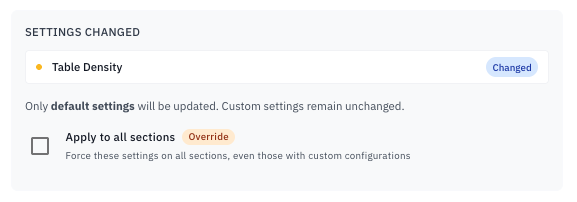
When you change these settings, if a Section setting is set to Use Pack Setting it will inherit the setting you set here. You can override this behaviour and force all sections to be set to the modified setting by selecting the Apply to all sections options before saving your changes.
Available Settings
The available options are described below.
| Setting | Description |
|---|---|
| Page Orientation | Choose the orientation - controls how the report appears when it is downloaded as a PDF (and printed). Inherited by Sections |
| Page Size | Choose the paper size - controls how the report appears when it is downloaded as a PDF (and printed). Inherited by Sections |
| Table Density | Controls how reports are displayed. It controls how much space appears between rows and columns, allowing you control how much appears on one screen and how easy results are to read. It does not control which groups are expanded or collapsed - that is set in the report's Layout. There are three settings: Comfortable, Compact and Condensed. Inherited from Global settings by default. Inherited by Sections |
| Negative Values Format | Choose whether negative values are formatted with brackets or not. Inherited from Global settings by default. |
| Hide Decimal Places | Choose whether to hide decimal places on report and chart output. Inherited from Global settings by default. |
| Hide Currency | Choose whether to hide the currency symbol on values. Inherited from Global settings by default. |
| In Thousands | Choose to show all values on all reports rounded to the nearest thousand. This can be helpful to make report output clearer if you have large numbers. and can be used along with the Hide decimal places setting. Inherited from Global settings by default. |
Arrange Sections Order
You can change the order of sections within your pack by clicking on the Arrange icon at the top right. When you click on the option is displays a list of sections - from there you can drag and drop the sections to order them in the sequence you desire. Click Apply Changes once done.
Bulk Update
You can change properties of the reports and charts in your report pack en-masse using the Bulk Update option at the top right. Selecting this option will start a step-by-step process where you select options to control how the report pack is updated.
Step 1 - Selecting Components
In the first step you select which components (reports or charts) you wish to include in the update.
Other Steps
In subsequent steps you select which options you wish to change. A list of current settings is displayed and you can choose to change each one - or you are given an option to change all components to one setting.
Use the Back and Next buttons to step through the options, until you reach the Review step at which point you can review the changes that will be made and confirm by clicking the Apply Changes button.
If any of the options are not completed or there are other mismatches between the old and new values (e.g. mapped companies have different data start dates, causing reporting dates to be invalid) a Configuration Issue will be displayed on the component - this can then be easily fixed by setting the correct properties on the report or chart.
More information on the individual steps can be found in the Copying Report Packs to Another Client section of the main Report Packs article - this behaves in a similar way to the bulk update.
Cover and Contents Pages
You can add a Cover or Contents page to your report pack by clicking on the Add Content button at the top of the pack. You can only add one Cover or Contents page per pack.
Cover Page
Select Cover Page from the Add Content menu to add a cover page. A default cover page will be added - from there you can customise the cover page by clicking on the edit icon at the top right of the page.
You can experiment with the options to obtain the desired look for your cover page. As you change the options, the appearance will change on the left hand side. The options are as follows.
| Option | Description |
|---|---|
| Paper Size | Choose the paper size for the cover - controls how the report appears when it is downloaded as a PDF (and printed). |
| Orientation | Choose the orientation for the cover - controls how the report appears when it is downloaded as a PDF (and printed). |
| Design Type | Choose the design for the cover - this controls the layout and style of the cover page. There are several options such as Card Image, Background Image, Split Image. |
| Logos | Select the logos you wish to appear on the cover page. You can choose up to two logos. The logos that are used here are the logos you have uploaded on the Account page. The size of the logo as it appears on the page can be adjusted too - you can choose from four sizes to help you get the right look for your cover page. |
| Background Image | Select a background image for your cover page. How the image is displayed will depend on the Design Type selected. You can choose from a list of Stock Images - or you can upload your own images by clicking on the Upload button in the Your Images section. Once uploaded, images will be retained in the Your images section for use on other report packs. You can delete an image you uploaded by clicking on the cross icon at the top right of the image. |
| Show Published Date | Choose whether to display the Published Date on the cover page. |
| Tagline | Enter text for a sub-heading. |
| Headline | Enter text to be displayed as the main heading. |
| Subtext | Enter additional text to be displayed. This text can be formatted using a rich text editor and generated by AI using the context of the content of that section. See AI Text generation section below for more info. |
Once you are happy with the options, click on Save to save your changes.
To delete the cover page click on the Delete icon at the top right of the cover page.
Contents Page
Select Contents Page from the Add Content menu to add a contents page. The page will be added, listing the contents in order of the sections you have in your report pack and using the Section Headlines as the names.
You can re-order the sections from the Contents page by clicking on the edit icon at the top right of the Contents page.
You can delete the contents page by clicking on the delete icon at the top right of the Contents page.
Sections
The first step in building a Report Pack is to add a Section. When you create a new pack, you’ll see a prompt inviting you to add your first Section.
A Section is a defined area within the pack where you can place content. Each Section starts on a new page and has its own settings for page size and orientation. You can also add an optional heading, tagline and introductory text.
Every report pack requires at least one Section, but you can add additional ones to control page breaks or to change layout settings — such as switching from portrait to landscape — at different points in the pack.
Sections also define the context for AI text generation. See AI Text generation below.
Adding a Section
To add a section simply click on the Add Section button that appears above or below an existing section. A blank section will appear, ready for you to add content.
Alternatively click on the Add Content button at the top and choose to add a section at the top or the bottom.
Editing a Section
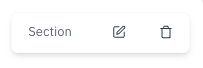
You can change the settings of a Section by clicking on the Edit icon on the Section toolbar that appears to the top-right of each Section.
Inheritance
Some settings are, by default, inherited from the Report Pack settings. You can retain the Report Pack setting by selecting Use Pack Setting (the report pack setting that is currently set will be shown in parentheses, e.g. Compact) - or you can change it to a specific setting which will only be used for this Section.
NOTE: Even if you have selected Use Pack Setting this can be overidden when changing the Report Pack settings.
Available Settings
When editing a section you have the following options.
| Setting | Description |
|---|---|
| Paper Size | Choose the paper size for this section - controls how the report appears when it is downloaded as a PDF (and printed). Inherited by default from Report Pack settings. |
| Orientation | Choose the orientation - controls how the report appears when it is downloaded as a PDF (and printed). Inherited by default from Report Pack settings. |
| Table Density | Controls how reports are displayed. It controls how much space appears between rows and columns, allowing you control how much appears on one screen and how easy results are to read. It does not control which groups are expanded or collapsed - that is set in the report's Layout. There are three settings: Comfortable, Compact and Condensed. |
| Tagline | Add text which will appear as a tagline at the top of the section. |
| Headline | Add text which will appear as a heading at the top of the section. |
| Subtext | Add text which will appear below the heading at the top of the section. This text can be formatted using a rich text editor and generated by AI using the context of the content of that section. See AI Text generation section below for more info. |
Rows
Within each Section, you can add multiple Rows to structure your content. Rows let you create layouts with multiple columns of varying widths, giving you control over how information is arranged on the page.
This allows you to position reports, charts, images and text above, below or alongside one another — helping you design a pack that looks clear, professional and easy to read.
Adding a Row
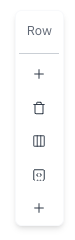
To add a row, click the Add First Row button. If your section already contains a row, simply hover over it to reveal the Row Toolbar.
The toolbar gives you options for managing rows. To insert a new row, click the plus (+) icon and choose whether to add the row above or below the current one.
Next select the Column Layout for the row - this controls how many columns will appear in the row. There are five options:
| Column Layout | Description |
|---|---|
| 1 Column | One column spans the whole row. |
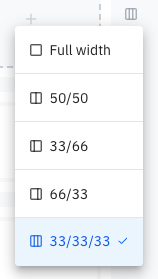
| 2 Columns | Two columns. With this option you can choose from 3 sub-options: - Two equal size columns. - Two columns, left-hand column is narrower (33%) than right (67%). - Two columns, right-hand column is narrower (33%) than left (67%). |
| 3 Columns | Three equal size columns. |
Once selected a new row will appear with placeholders for the content you will place into that row. See Content section below.
Changing the Column Layout of a Row
You can change the column layout of a row by clicking on the Layout icons on the Row Toolbar. Click the layout icon and select the desired layout. If you are in 2-column mode you can additionally click the Ratio icon to change the size of each column.
Deleting a Row
You can delete a row by clicking on the delete icon on the Row Toolbar.
Content
Once you've placed a Row into a Section on your Pack you can add content. Content is the meat of the Report Pack. It is the means by which your underlying data is presented and brought to life. Content can be one of the following:
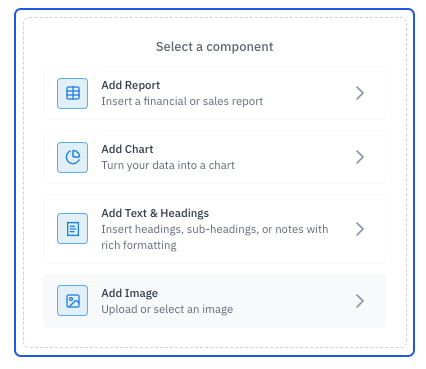
Report
A report in tabular format - this can be any of Joiin's reports, Financial, Sales & Purchasing or KPI and include any format and layout (nested groups and formulas etc.) and any Report Filters (companies, dates, comparison periods etc.).
Chart
A chart - line, bar, donut etc. These charts work like the Dashboard Charts and can be formatted to display a wide range of information in a variety of formats.
Text
A block of text. Text can include a headline, tagline and body of text. Additionally AI can be used to generate text, based on the context of the reports and charts within that Section.
Image
An image that you can upload and arrange for display in your report pack. Any image can be used as long as it is in one of the supported formats (JPEG, PNG, GIF, WebP) and is no more than 3MB in size. Images such as screenshots, team photos or charts and graphs from other sources can be used to compliment and enhance your report pack.
How Report and Chart Content looks depends on the Layout/Format and the Report Parameters that you choose. The former defines the structure and appearance and the latter defines the data that is used. Content that you add is interactive when viewed online, in the same way it is when you view that content through the Reports and Dashboard.
Content - Reports
Adding Reports
To add a report, choose the Add Report option on the Row. You will then be prompted to choose which type of report to add. You can choose from any one of the available Joiin Financial, KPI and Sales & Purchasing reports.
Next choose the Layout. Layouts define how a report is structured and formatted - as well as selecting a Layout here you can also edit and create layouts if required - see the Layouts article for more information on using and editing layouts.
Once you've selected the Layout your report will be added to the pack. The report will be added with the default Report date parameters (current and previous 3 periods) and companies selected based on your previous company selections within this report pack - it will then be generated so you can see the live report results.
NOTE: If you have a lot of companies and this is your first report pack - the companies automatically selected for you will be limited to 25.
Report Name and Description
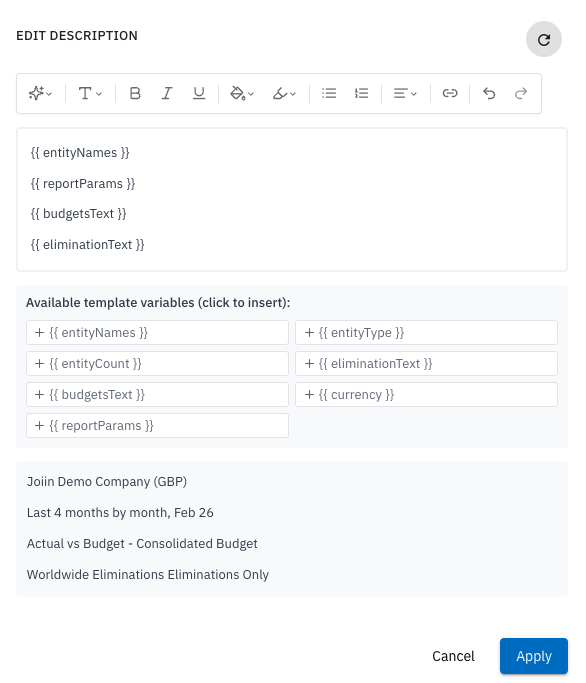
When a report is added with the name set to the name of the Layout and a Description which includes a list of the companies and the report parameters. This can be changed by clicking on the Edit Report Parameters icon on the report toolbar. You can change the name as required. To change the Description click on the edit icon next to the Description field. You can then set the description to whatever is required, using the rich text controls and template variables which will be replaced with the actual values, such as {{ currency }} and {{ entityCount }}.
TIP: You can also add Reports to a Report Packs directly when running reports - see above. When you do this the Report Parameters will be those you have selected when running the report.
Editing Report Parameters
Once you've added a report you can change the Report Parameters by clicking on the Edit Report Parameters icon on the report toolbar which appears at the top right of a report.
See the Report Parameters section of the Running Reports article for more information on the report parameters that can be set. Once you've made the changes click on the Save button and the report will be re-generated with the new parameters.
A note on Dynamic Dates
A dynamic date is a setting you can apply to a report that keeps the report output relative to the current date. Instead of choosing a fixed date, you select a rule—like “last day of the month” or “7 days from today.”
As time passes, the report date updates automatically based on the rule you’ve set. For example, if you choose “last day of the month,” your report will always run to the end of the current month—no need to update it manually.
It’s a powerful way to keep reports relevant and up-to-date, especially for scheduled report packs or regular analysis.
Editing Report Layout
You can also change the report layout by clicking on the Edit Report Layout icon on the report toolbar. You will be prompted to select a different layout - you can also edit or create layouts from here. See the Layouts article for more information on using and editing layouts.
This is also where you control which groups appear expanded or collapsed in the report - including in the downloaded PDF and Excel.
Deleting a Report
You can delete a Report from a Report Pack by clicking on the Remove Report icon on the report toolbar.
Commenting on Reports
You can comment on cells in a report - see the Commenting of Reports section in the main Report Packs article.
Content - Charts
Adding Charts
To add a Chart, choose the Add Chart option on the Row. You will then be prompted to select which chart you wish to add. The available charts are explained in the Managing Charts article. Once you have selected the desired Chart and options the chart will be generated and appear in the Report Pack.
Editing Chart Parameters
After adding a chart you can edit the chart parameters and options by clicking on the Edit icon on the Chart toolbar.
NOTE: Report Pack Charts have their own report filters and work like Dashboard widgets - this is distinct from Layout Charts which are linked to the report that is using that layout - the filters being used for that specific report will be used to generate the chart.

As they use the report filters, Layout Charts can give you more flexibility on what can be displayed on a Chart - e.g. you can break down by Category.
Deleting a Chart
You can delete a chart from the report pack by clicking on the Delete icon on the Chart toolbar.
Content - Text
Adding Text
You can add a Text block to your pack by clicking on the Add Text and Headings option on the Row. A default Text block will be added when you click - from there you can edit the text be clicking on the Edit icon.
When you add a Text block you can set the following options:
| Option | Description |
|---|---|
| Tagline | OPTIONAL. A tagline for your text block - this will appear at the top of the text block as a sub-heading. |
| Headline | OPTIONAL. A headline for your text block - this will appear at the top of the text block as a heading. |
| Text | Text you wish to display. This is rich text which can be formatted using the formatting toolbar of the Joiin Ai Text Editor. You can also use context-based AI to generate text that relates to the content within the section - see below. |
As you modify the information in those fields you will see the changes made in the main report pack to the left. Once you've set the fields to the desired values, click on the Save button to save them permanently in the report pack.
AI Text Generation
You can write your own text or Joiin can generate text automatically using context-based AI. Text will be generated with our Joiin Intelligence AI technology and can use information from the Reports and Charts within the section where the text component is, across the entire pack or look across all your data to find the information required.
To do this, simply click on the Generate with AI link and ask Joiin Ai what you would like the text to say.
You can ask for any information you want to be displayed in this part of your report. It works just like the Joiin Ai Assistant. Be specific as possible - if you want it to relate to specific reports of charts then tell it which charts - if you want it to relate to wider information from the whole report pack or across all your data then say this. Be specific about length, paragraph structure, tone etc. - just like any LLM based Ai generation tool.
Once generated you can edit or format the text as required for your report pack with the other Text Editor controls. You can see what your text will look like in the report pack on the left-hand side as you edit.
Regeneration
An AI generated Text block does not get automatically re-generated if the context around it changes - context may change for example if
- you have a Report or Chart with Dynamic Dates set (e.g. Last Month) - the data on that report and chart may change as time moves on and you run the report pack in the future.
- custom report layouts are modified - the structure of a report changes and therefore the data being shown changes
- the report pack itself is modified - chart and reports are added, moved, changed or deleted - this can change the context used to generate the text
If context changes, AI text is not automatically re-generated but you can re-generate it manually at any time without going in and editing the component - simply just click on the Regenerate button on the Text toolbar at the top right.
Editing Text
You can edit a text component at any time by clicking on the edit icon on the Text toolbar at the top right.
Deleting Text
You can delete a text component by clicking on the delete icon on the Text toolbar at the top right.
Content - Images
Adding Images
You can add an Image to your pack by clicking on the Add Image option on the Row.
To upload an image click on the grey box to bring up your local file browser and select the image from your computer you wish to use. Alternatively you can drag the image onto the grey box.
The image will upload. Once uploaded you can set the following options:
| Option | Description |
|---|---|
| Title | OPTIONAL. A title for your image - this will appear at the top of the image. |
| Caption | OPTIONAL. A caption for your image - this will appear below the image. |
| Alt text | OPTIONAL. Text which is displayed when user hovers the mouse over the image. |
| Display Options | Choose how the image size is formatted within the content area. Full Width - Image stretches to fill the entire column width, maintaining the aspect ratio. Use cases: Hero images, banners, charts that should span the column. Fit to Content - Image displays at its natural size (up to column width max), no stretching. Use cases: Logos, icons, smaller images that shouldn’t be blown up. Custom Width - Select a custom width - the image width will be reduced based on the selection, maintaining the aspect ratio. |
Editing Image
You can edit the properties of the Image or replace it with another images at any time by clicking on the edit icon on the Image toolbar at the top right.
Deleting Image
You can delete an image component by clicking on the delete icon on the Image toolbar at the top right.
Re-Arranging Components
Once created, you can move the position of sections, rows and components within your report pack. Click on the Arrange button at the top right.
This brings up the Report Structure Organiser. This shows the structure of your report pack (sections, rows, components) in an easy-to-view way and allows you to move components around.
Sections
Initially a list of each sections is shown, with an indicator of how many and what type of components exist in that section.
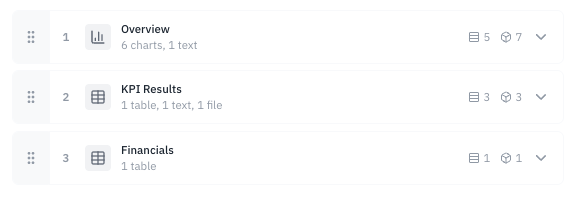
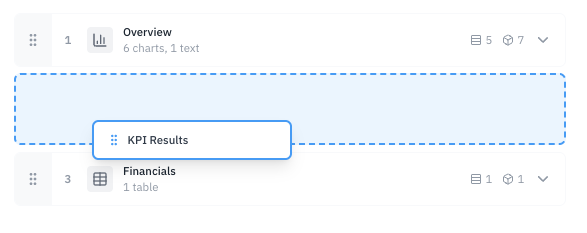
You can change the order of the sections by Dragging and Dropping them - click and hold in the six-dot grey area on the left of each section to drag and drop it into the desired position. Dotted blue areas are highlighted to show where items can be dropped in.
Click on the expand icon on the right of each section to expand that section and see the components within it.
Rows and Components
Once a section is expand you can see the structure of that section: the rows and components (reports, charts, text, images) that make it up.
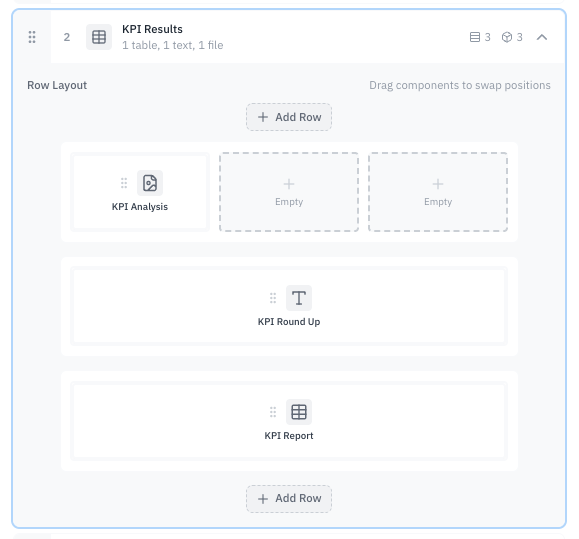
Icons and names indicate what type each component is - the names are taken from the Titles/Headlines you have set on your components. If a row or area within a row contains no component it will show as Empty.
Use drag-and-drop again to move Components around the structure - move a component over the top of another component and they will swap places - or move a component into an Empty spot to move it there.
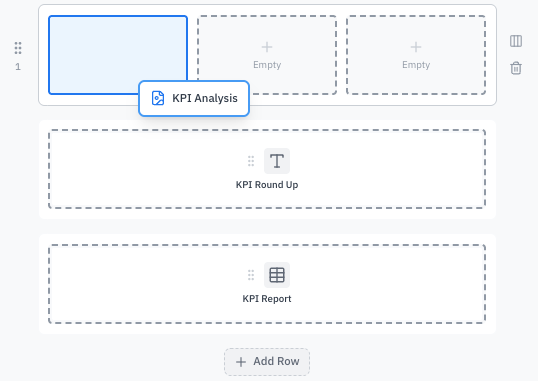
NOTE: You can move components between sections too. Just expand the section you wish to move the component to and you can move it into that section in place of another component or into an Empty space.
Other Actions
You can change the column layout of a row by clicking on the Layout icon and selecting the desired column layout.
You can add a new row by clicking on the Add Row button.
You can delete a row by clicking on the delete icon next to the row.
Saving Changes
Once you've organised the components in your Report Pack as desired, click on the Save button to see the changes in the Report Pack.