
IN THIS SECTION
- Overview
- What is a Connection?
- Connections and Companies
- Where to find Connections
- Adding a Connection
- Linking a Connection to a Company
- Connection-Sourced Non-Financial Data
- Where Connection Data Appears in Joiin
- Managing a Connection
- Disconnecting
- Troubleshooting
Overview
Connections bring data into Joiin from systems beyond your accounting platform. Where a Company brings in your financial data from Xero, QuickBooks, Sage, or another accounting source, a Connection brings in non-financial data from operational systems — things like subscription metrics from Stripe, and (over time) data from CRM, marketing, product, or HR tools.
Connection-sourced data flows into Joiin as Non-Financial Data, which means you can use it everywhere Non-Financial Data already works: in custom layouts, KPIs, dashboards, and report packs — sitting right alongside your consolidated financials.
What is a Connection?
A Connection is a live link between Joiin and an external system that provides non-financial data. Once connected:
- Joiin syncs data from that system on a regular schedule
- The data appears as Non-Financial Data items, automatically populated
- Those data items are read-only — they cannot be edited manually, because the source system is the source of truth
- New KPIs and dashboard widgets become available wherever the connection unlocks them (for example, connecting Stripe makes SaaS metrics like MRR and active subscribers available)
Connections will include additional integrations over time — Stripe is the first, and more will be added over time.
For more detailed information on the metrics included with Stripe see the Stripe Connector article.
Connections and Companies
It helps to understand the distinction:
- A Company in Joiin represents a financial accounting entity and is connected to an accounting platform. It brings in financial data — your trial balance, P&L, balance sheet, transactions.
- A Connection brings in non-financial, operational data from a third-party system. A Connection is not a Company and does not produce financial reports on its own.
The two work together. Your Companies give you consolidated financials; your Connections enrich those financials with operational context (recurring revenue, customer counts, growth metrics, and so on).
Where to find Connections
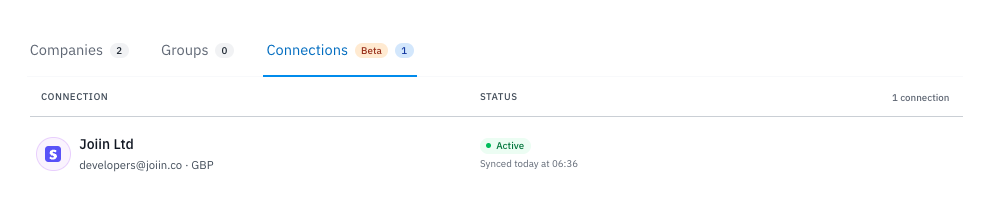
Connections live on the Companies page as a dedicated tab alongside your existing Companies and Groups tabs.
From here you can see all the Connections you have set up, their current sync status, and add new ones.
Adding a Connection
To add a new Connection:
1. Open the Companies page
2. Click the Connections tab
3. Click the Connect to Stripe button
5. Follow the prompts to authorise Joiin to read data from Stripe. For most connections this uses a secure OAuth flow — you'll be redirected to the source system to log in and approve access, then returned to Joiin.
6. Select which Company, if any, to link the Connection to and click Save.
See the Troubleshooting section below if you are having problems connecting.
Once authorised, Joiin will begin its first sync. Depending on the volume of data, this may take a few minutes to complete.
Stripe may contain a lot of data - for this reason Joiin will initially fetch the first 12 months of data so it can create the Non-Financial Data items. It will then continue to sync older historic data in the background.
NOTE: Connection data will automatically be refreshed every 24 hours. You can refresh manually any time by selecting Refresh Data from the three dot menu next to the connection.
Linking a Connection to a Company
Each Connection can be linked to one of the Companies or Company Groups in your client. Linking tells Joiin which entity a Connection's data belongs to — so when you filter a dashboard or report to a Company or Group, only the Connections linked to it surface. As Connection data comes in as Non-Financial Data It works exactly the same as linking companies to Non-Financial Data.
The metric names, e.g. Run Rate MRR - appear in Non-Financial data under the same name, but there will be a row in the Non-Financial Data page for each company. This means when you run reports, there is a single KPI for Run Rate MRR and the values displayed will depend on the company linkages and the companies being reported on.
This matters most when you have more than one Connection (e.g. Stripe account). A business running several Stripe accounts under a single Stripe login can connect them all, then link each one to its matching Company. Filter to one Company and you see that Company's subscription metrics; filter to another and you see theirs.
Linking to a company is optional - you can choose to set the Connection as Whole Client and then the data will appear across all companies.
You can link a Company/Group to a Connection when you first connect - a popup will appear asking you to select - or you can change the linkage at any time by clicking on the three-dot menu next to the Connection and selecting Edit linked companies.
NOTE: It is possible to link more than one Connection to the same Company - if you do this, data will be combined from each Connection into one row on the Non-Financial Data page.

(If the Connections, linked to the same company, are different currencies, the data will not be viewable on the Non-Financial Data page, but will be converted correctly at report time)
Connection-Sourced Non-Financial Data
When a Connection syncs, the data it brings in appears as Non-Financial Data items in Joiin. These behave like any other NFD item with two important differences:
- They are read-only. You cannot edit, override, or manually input values for a connection-sourced NFD item — the data always comes from the connected system.
- They are visibly linked to their Connection. On the NFD page, connection-sourced items are shown alongside the Connection they belong to, so it's clear where the numbers come from.
If you need to make an adjustment, do it in the source system — the change will flow through on the next sync.
For more on Non-Financial Data generally, see the Non Financial Data article.
Where Connection Data Appears in Joiin
Connection-sourced data flows through the rest of Joiin in the same places Non-Financial Data already appears:
- Custom Layouts — include connection-sourced KPIs alongside financial accounts
- Dashboards — use the data in chart widgets, including the dedicated tabs surfaced by specific connections (for example, the SaaS tab on the Dashboard, populated by Stripe data)
- KPI Reports — connection-derived KPIs are available alongside your standard financial KPIs
- Report Packs — bring connection data into the reports you share with stakeholders
This means once a Connection is live, the data is genuinely consolidated with your financials — not held in a separate silo.
Managing a Connection
From the Connections tab you can:
- View sync status — see when the connection last synced and whether it ran successfully
- Reconnect if authorisation has expired or the source system credentials have changed
- Disconnect to remove the Connection (see below)
If a sync fails, Joiin will surface this on the Connections tab. The most common cause is expired authorisation in the source system, which is resolved by reconnecting.
Disconnecting
To remove a Connection:
1. Open the Companies page and click the Connections tab
2. Locate the Connection you want to remove
3. Use the Delete & Disconnect option
4. Confirm the action
When you disconnect, Joiin stops syncing data from that system and removes all data related to that connection.
If you have created custom reports or dashboards using the Non-financial data from a connection which is later deleted, those custom items may become invalid.
Troubleshooting
Connecting Stripe — if the login screen doesn't work first try
Stripe's login screen (at connect.stripe.com) occasionally fails silently on the first attempt — particularly the first time you connect from a new browser or device. You'll see the email/password form, submit it, and get sent back to the email field with no error message and no two-factor prompt, even if your credentials are correct.
This is a session-initialisation issue on Stripe's side and is unrelated to your password or your Stripe account. Two reliable workarounds:
- Open a private (incognito) browser window and click Connect to Stripe again from there, or
- Log into dashboard.stripe.com first in the same browser, then come back to Joiin and click Connect to Stripe.
Once Stripe's OAuth portal recognises your browser session, the connection completes first try.
If you're still stuck after trying both, contact support — we'll help you through.