IN THIS SECTION
- Overview
- When your Stripe data updates
- Billed MRR
- Run-rate MRR
- Churn, customer movement, and other SaaS metrics
- Gross Revenue and Net Revenue
- Full list of Stripe metrics and KPIs in Joiin
- Where to find these in Joiin
Overview
This article explains the metrics in your Joiin dashboard that come from Stripe connections — what each one means, how often it refreshes, and how to interpret the figures alongside your Stripe Dashboard.
There are two main MRR figures in Joiin — Billed MRR and Run-rate MRR — that answer subtly different questions. The most common reason for reading this article is to understand which one to look at. Jump to whichever section is relevant.
When your Stripe data updates
Initial sync. When you first connect, the last 12 months of activity loads first — typically within 5 to 30 minutes — and your dashboard, Non-financial data and KPIs becomes usable as soon as that finishes. Older history then loads in the background; for accounts with several years of activity that can take up to about an hour in total. Progress shows on the Connections page.
Daily sync. Once a day, Joiin picks up any new activity since the last sync — new customers, charges, invoices, refunds, credit notes, and subscription changes. Open invoices that have since been paid or voided are also refreshed.
Manual sync. Need your latest Stripe activity in Joiin right now? Click the refresh icon next to the connection on the Connections page.
Billed MRR
Billed MRR is the recurring revenue you invoiced through Stripe, distributed across the calendar days each invoice line covers. It's the figure that reconciles to your accounting books.
Because each invoice is spread across the days it covers, a flat-price subscription shows slight variation month to month. A £49/month subscription billed on the 18th produces:
Month | Days | Billed MRR |
|---|---|---|
January | 31 | £49.00 |
February | 28 | £45.08 |
March | 31 | £49.90 |
April | 30 | £48.10 |
The year totals to the same as the total invoiced — the per-month variation just reflects how many days fall in each calendar month. This is how accounting standards recognise subscription revenue, so it matches your books rather than smoothing it out.
Credit notes (refunds, write-offs, adjustments) subtract from the month the original invoice covered, not the month they were issued — keeping revenue and credit in the same period.
Not included in Billed MRR: one-off charges (those go to Gross/Net Revenue), tax, Stripe fees, and proration line items (which flow through on the next normal invoice rather than being double-counted).
If you want a forward-looking subscription value rather than what was actually billed each month, see Run-rate MRR below.
Run-rate MRR
Run-rate MRR is the forward-looking monthly value of your active subscriptions at month-end — the contracted rate, with annual plans divided by 12, quarterly by 3, and so on. It's the closest equivalent to Stripe Dashboard's MRR.
Joiin works this out from your invoice history (rather than just your current subscription list) so that historical figures include customers who have since churned or been deleted from Stripe.
Why Run-rate MRR can differ from Stripe Dashboard
The current month converges with Stripe. Historical months may show small differences because of:
Price changes — Joiin reflects a new rate when the next invoice at that rate lands. Stripe reflects it on the effective date. A broad price change creates a one-billing-cycle lag before the two views re-align.
Cancellations — Joiin keeps a cancelled subscription in MRR until its paid invoice period ends. Stripe can be configured either way.
Discounts — Joiin reports post-discount revenue. Stripe has settings to include or exclude discounts.
Each side's view is defensible — they just answer the question slightly differently.
Run-rate MRR vs Billed MRR. Run-rate uses the contracted rate, so flat-price plans show a flat figure month to month — just like Stripe Dashboard. Billed MRR uses days-proportional attribution (so February is lower, July is higher) because its job is to reconcile to your books.
Churn, customer movement, and other SaaS metrics
Churned Customers / Churned MRR. A customer counts as churned in the month their most recent paying period ends and no new paying period starts. Counted per customer, not per subscription — cancelling two subscriptions in one month is one churn.
The current and previous months' churn figures are provisional: a monthly subscriber temporarily looks "churned" in the gap between billings, then the metric self-corrects when the next invoice lands. Treat very recent churn figures as directional.
Returning Customers. A customer whose new paying period starts at least 30 days after their previous one ended. The 30-day gap distinguishes genuine reactivation from a normal renewal cycle.
New MRR / Expansion MRR / Contraction MRR.
New MRR — from customers whose first-ever paying period started this month
Expansion MRR — rate increases on an existing subscription (upgrades, quantity increases)
Contraction MRR — rate decreases on an existing subscription (downgrades, quantity reductions), shown as a positive number representing MRR lost
A customer who cancels then resubscribes at a higher rate appears as Churn + New, not Expansion. Expansion specifically means the same subscription continued at a higher rate.
Gross Revenue and Net Revenue
Gross Revenue and Net Revenue come from Stripe's balance transactions — the cash-movement view of your Stripe activity, distinct from the subscription-revenue view that MRR provides.
Gross Revenue — successful charges and payments in the period, before fees, refunds, or chargebacks. Matches Stripe Dashboard's Gross Volume.
Net Revenue — Gross minus Stripe fees, refunds, and dispute adjustments. Matches Stripe Dashboard's Net Volume.
Why Gross Revenue and Billed MRR can look very different
A customer paying £588 for an annual subscription in January produces:
Gross Revenue, January: £588 — the cash that moved in January
Billed MRR, each of the 12 months: £49 — revenue earned each month
Both are correct; they answer different questions. Gross/Net Revenue is a treasury view (cash in, cash out). MRR is a subscription-revenue view (what was earned each month).
Disputes and timing
If a charge in January is disputed and resolves in March, the resolution creates a separate adjustment dated March:
January: contributes positively to Gross and Net Revenue (the original charge)
March: contributes a negative adjustment to Net Revenue (the resolution)
This mirrors Stripe Dashboard exactly. One practical implication: a given month's Net Revenue can shift slightly as disputes finalise — typically within 60-90 days. Stripe never edits the original transaction; each adjustment is its own dated entry.
Not included: Stripe's own platform bills (e.g. Sigma, Radar) are excluded to avoid double-counting per-transaction fees. Payouts to your bank and Connect transfers are cash movements, not revenue, so they're not included either.
Full list of Stripe metrics and KPIs in Joiin
Stripe-sourced data is organised into two groups: SAAS (subscription-business metrics, appears when your Stripe account has subscriptions) and PAYMENT PROCESSING (charge-volume metrics, appears whenever you have successful charges).
Raw metrics (synced from Stripe)
Each appears as a Non-Financial Data (NFD) item under your client.
Metric | Group | What it is |
|---|---|---|
Run-rate MRR | SAAS | Forward-looking monthly value of active subscriptions at month-end |
Billed MRR | SAAS | Recurring revenue actually invoiced, distributed across the days each invoice covers |
Active Subscribers | SAAS | Customers with a subscription contributing positive MRR at month-end |
New MRR | SAAS | MRR from customers whose first-ever paying period started this month |
Expansion MRR | SAAS | Rate increases on existing subscriptions |
Contraction MRR | SAAS | Rate decreases on existing subscriptions |
Churned MRR | SAAS | MRR lost from customers who churned this month |
Churned Customers | SAAS | Count of customers who churned this month |
Returning Customers | SAAS | Count of customers who reactivated after a 30+ day gap |
New Customers | SAAS | Customers registered in Stripe this month (Stripe |
New Customers (first invoiced) | SAAS | Customers whose first paid invoice landed this month |
| New Customers (first charged) | PAYMET PROCESSING | Customers whose first successful charge landed this month |
Gross Revenue | PAYMENT PROCESSING | Successful charges + payments, before fees and refunds |
Net Revenue | PAYMENT PROCESSING | Gross minus Stripe fees, refunds, and dispute adjustments |
Number of Charges | PAYMENT PROCESSING | Count of successful charges and payments in the period |
Refund Total | PAYMENT PROCESSING | Total refunds issued in the period |
Processing Fees | PAYMENT PROCESSING | Total Stripe processing fees in the period |
| Paying Customers | PAYMENT PROCESSING | Distinct customers charged in the period |
| Repeat Customers | PAYMENT PROCESSING | Customers charged in the period who had also been charged before |
Derived KPIs (composed from the raw metrics)
These come pre-built in the KPI report and the SaaS dashboard widget tab — you don't need to compose them yourself.
SAAS group:
KPI | Formula |
|---|---|
Net MRR Movement | New MRR + Expansion MRR − Contraction MRR − Churned MRR |
Gross New MRR | New MRR + Expansion MRR |
Gross Churned MRR | Churned MRR + Contraction MRR |
ARPA (also called ARPU) | Run-rate MRR ÷ Active Subscribers |
Customer Churn Rate | Churned Customers ÷ Active Subscribers |
Revenue Churn Rate | Churned MRR ÷ Run-rate MRR |
Customer Lifetime (months) | Active Subscribers ÷ Churned Customers |
LTV (revenue-based) | Run-rate MRR ÷ Churned Customers |
LTV (GM-adjusted) | Run-rate MRR ÷ Churned Customers × Gross Profit Margin |
Quick Ratio | (New MRR + Expansion MRR) ÷ (Churned MRR + Contraction MRR) |
Net MRR Growth Rate | (New MRR + Expansion MRR − Contraction MRR − Churned MRR) ÷ Run-rate MRR |
Rule of 40 | Net MRR Growth Rate + EBITDA ÷ Total Revenue |
PAYMENT PROCESSING group:
KPI | Formula |
|---|---|
Average Order Value (AOV) | Gross Revenue ÷ Number of Charges |
Refund Rate | Refund Total ÷ Gross Revenue |
Processing Fee % | Processing Fees ÷ Gross Revenue |
LTV (GM-adjusted) and Rule of 40 combine Stripe metrics with values from your accounting data (Gross Profit Margin, EBITDA, Total Revenue) — Joiin computes these across both sources automatically.
Where to find these in Joiin
Dashboard widget picker. When your client has a Stripe connection, a SaaS tab appears in the "Add a widget" dialog with pre-built widgets covering the main SaaS metrics. Drop them straight onto your dashboard.
Built-in KPI report. Under Reports → KPI Report, a SAAS section (and PAYMENT PROCESSING if relevant) lists every raw metric and derived KPI as report rows.
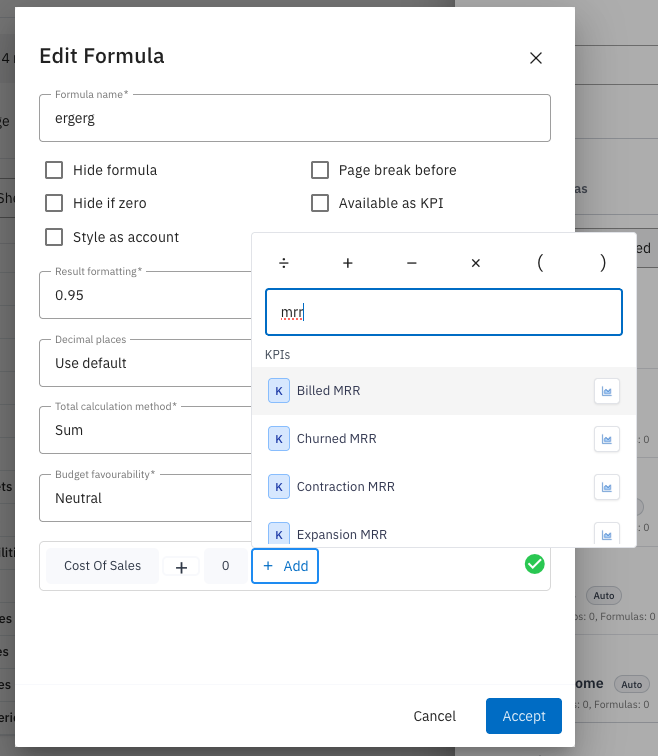
Custom reports and formulas. Every metric is available as a KPI in the Custom Layout formula builder. So you can build your own KPIs mixing Stripe metrics with your accounting data.