
IN THIS SECTION
Overview
You can change global settings that control how Joiin works through the Settings tab of the Settings page.
To get to the Settings page click on the Settings menu at the top right (cog icon) and select Settings.
NOTE - you must have Admin rights to access this menu item
The following settings can be changed.
Consolidation
Consolidation By
Controls how Joiin consolidates and merges accounts when running reports. By default Joiin consolidates based on Account Type and Name - so accounts from different companies with the same Type and Name will be merged into a single account when viewing Joiin reports. This can be changed to consolidate only by Type and Code or only by Type, Code and Name.
NOTE: If you want to consolidate accounts that have different codes and names this is still possible by using the Account Mapping feature or by using Groups within Custom Layouts.
NOTE: If you consolidate by CODE but display by NAME, there could be scenarios where you have different names across the same code - in this case, Joiin must pick one to display in the reports - it does this by picking the name from the first company, based on the order the companies have been set on the Companies page.
Display
Change whether Account Code and/or Account Name are displayed when viewing reports.
Sort By
Choose how Joiin sorts the accounts in financial report results. You can choose to sort by Code or Name, either Ascending or Descending. If you have chosen to consolidate by Code only, you can only select to sort by Code. If you have chosen to consolidate by Name only, you can only select to sort by Name.
Exchange Rates
See the Exchange Rates section for more information on these settings.
Report Display
Hide zero value accounts
Select this option to prevent accounts with zero amounts from appearing within reports.
Hide zero value groups
Select this option to prevent groups with zero totals from appearing within reports.
Hide decimal places
Select this option to show values without decimal places, rounded to the nearest whole value. All currency values on all reports will follow this setting but i can be overridden for things like percentages and ratios by using the Decimal Places setting on Custom Layout formulas.
Hide currency symbol
Select this option to hide the currency symbol that is displayed with report results.
Show values in thousands
Select this option to show all values on all reports rounded to the nearest thousand. This can be helpful to make report output clearer if you have large numbers. and can be used along with the Hide decimal places setting.
For example, a value of:
£47,345.56
would show as:
£47.35
With the Hide decimal places setting switch on too, it would show as:
£47
Group Sub-Accounts
Joiin can automatically nest QuickBooks-style sub-accounts into collapsible groups so your reports match how QuickBooks displays them.
What it does
QuickBooks uses colons in account names to represent hierarchy. For example:
Website (parent)
Website:Website update (child of Website)
Website:Website update:Website design (grandchild)
With Group sub-accounts enabled, Joiin automatically detects these colons and renders the accounts as nested, collapsible sub-groups in your reports:
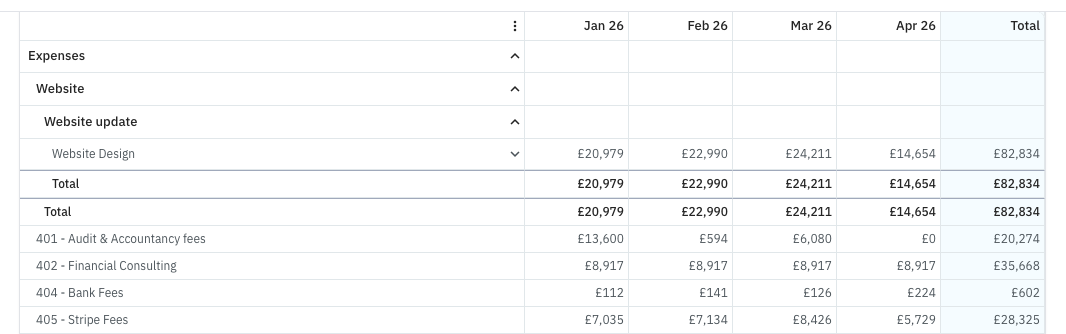
Without the setting, the same accounts appear as a flat list with their full names shown.
Turning it on or off
Simply check the Group sub-accounts box to switch the setting on.
The setting is applied at report time - turning it off takes effect immediately with no data changes. Your accounts and historical data are untouched.
Defaults:
- QuickBooks clients: ON by default (matches QB's native display)
- Xero-only clients: OFF by default (Xero doesn't typically use colons for hierarchy)
Xero users who manually structure their accounts with colons (e.g. Payroll:Directors) can turn it on to get the same nested display.
How it works with custom reports
Grouping operates within each section. Joiin looks at the accounts in a given section (e.g. Revenue) and groups any that share a colon prefix.
If you move colon-related accounts to different sections in the custom report editor, each section groups independently. For example, if you move "Website" (the parent account) from Revenue into a different section but leave "Website:Website update" in Revenue, you'll see:
- A Website sub-group in Revenue containing the remaining children
- The parent Website account on its own in the new section
To keep the hierarchy together, move the parent and all related accounts to the same section. Alternatively, turn off Group sub-accounts to render everything as a flat list.
Which reports are affected
Grouping applies to:
- Standard P&L, Balance Sheet, Cashflow reports
- Custom reports
- Report packs (reflects whatever grouping is in the underlying reports)
- CSV export (accounts keep their full colon names in CSV for data portability)
Budgets and forecasts aren't affected - each colon-delimited account is treated as an independent account with its own budget line. The sub-group total is just a visual sum of the children.
Limitations
- Sub-groups always render as collapsed in reports. You can click to expand them but can't currently set a different default.
- Sub-groups sort first within their parent section (before ungrouped accounts).
- When all accounts inside a sub-group are removed, the empty group may remain in the layout - it renders as an empty group with a zero total.
Table Density
This setting controls how reports are displayed. It controls how much space appears between rows and columns, allowing you control how much appears on one screen and how easy results are to read.
There are three settings: Comfortable, Compact and Condensed.
Currency Format
This setting allows you to control the way the currency is displayed. There are two options available:
| Option | Description |
|---|---|
| Currency | Displays negative values without brackets. |
| Accountancy | Displays negative values in brackets. |
Zero values
This setting allows you to control whether zero values on reports are displayed as dashes or as zeroes.
Column Order
This setting controls which order period columns on financial reports are displayed in. By default Joiin displays the columns in chronological order, which is usually the standard. In some cases though it is useful to see the columns in reverse chronological order.
| Option | Description |
|---|---|
| Earliest First | Displays the earliest period first, e.g. Mar | Apr | May |
| Latest First | Displays the latest period first, e.g. May | Apr | Mar |
Other Settings
Cashflow Retained Earnings Adjustment
This setting controls whether manual changes to Retained Earnings are reflected on the Joiin Cashflow report. In some circumstances it is necessary to include these changes to make the Cashflow report balance. If this is producing unwanted results it can be switched off here.
Hide Archived Tracking Category Options
This setting controls where Archived Category Options are available to select on reports. Archived options are those which are marked as archived or deleted in the source system (Xero Tracking Categories or QuickBooks Classes or Locations). Select the hide option to ensure these are not shown which can cut down on noise.