
Forecasts can be created within Joiin using the Forecast option in the Budgets & Forecasts section. This feature will use historical data alongside a set of forecasting rules to produce your forecast.
Alternatively, forecasts can also be uploaded directly using a CSV upload
For more info on applying forecasted figures to your report, please see this guide
Creating a Forecast
To create a Forecast in Joiin:
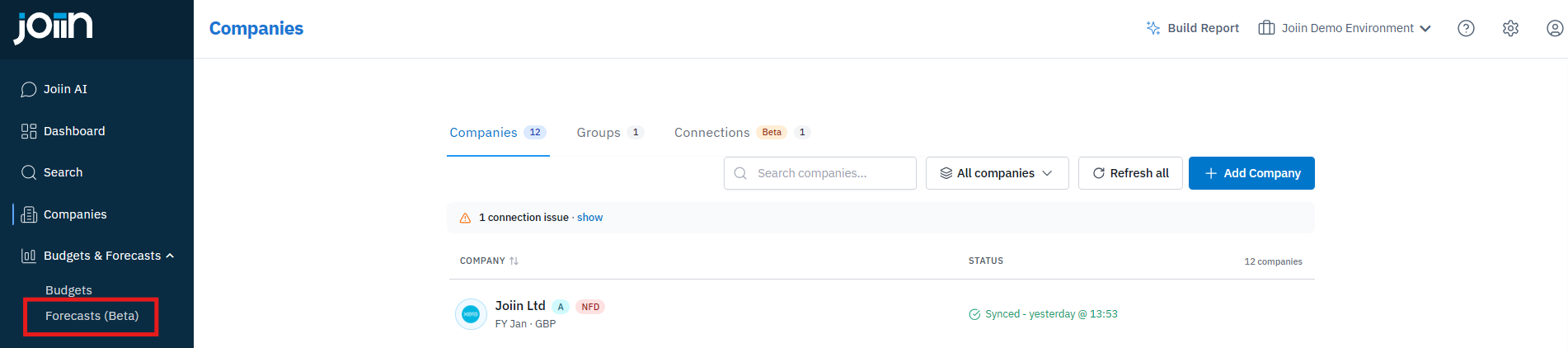
1. Select the Forecast option from the Budgets & Forecasts section of the left side toolbar
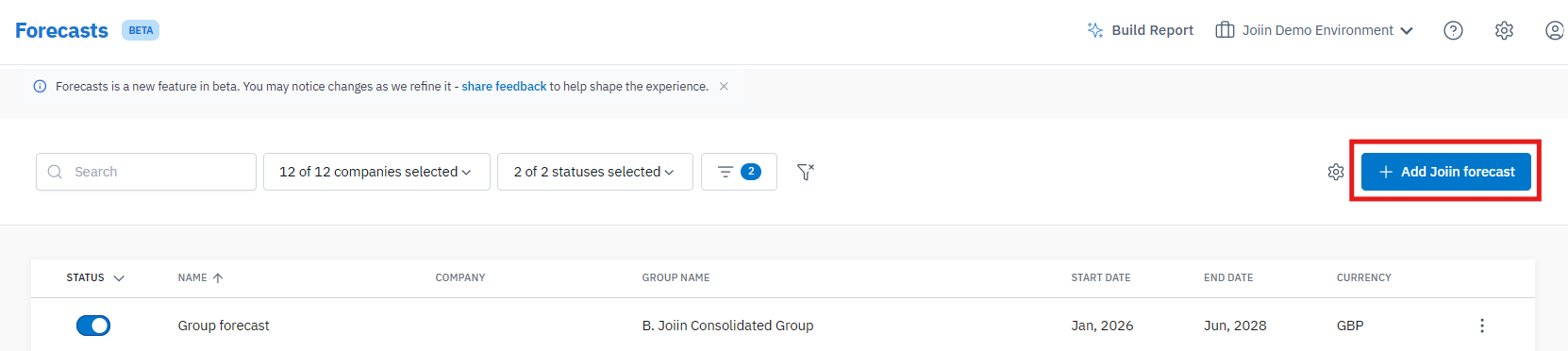
2. Choose the Add Joiin Forecast button
3. Set a name for the forecast as well as the dates and company or company group it will apply to
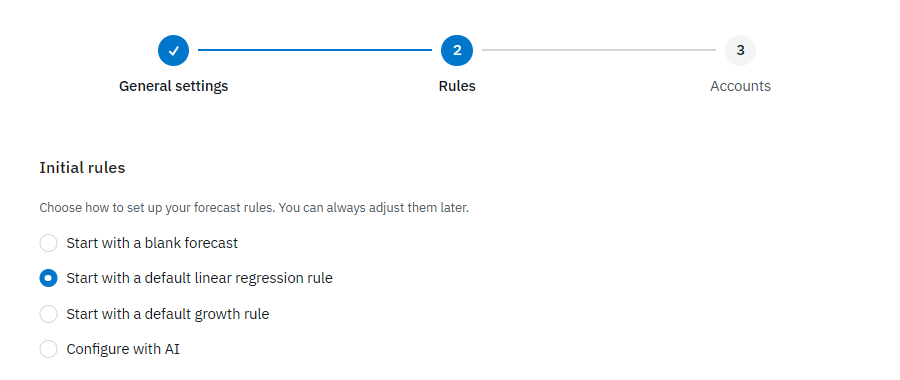
4. Set up your Forecast Rules using either the Default Linear Regression, Configure with AI or Default Growth option
For more info on the different Forecast Rules and their uses, please see this guide
5. Select the GL Accounts that Joiin will use for your historical figures
6. Click the Create Forecast button in the bottom left corner to produce forecasted figures
For more detailed information on each of these steps, see this User Guide
NOTE: If you have produced Forecasted figures outside of Joiin, these can be added using a CSV upload via the Forecasts page