
Forecasts can be created within Joiin using the Forecast option in the Budgets & Forecasts section. This feature will use historical data alongside a set of forecasting rules to produce your forecast.
For more info on applying forecasted figures to your report, please see this guide
Creating a Forecast
To create a Forecast in Joiin:
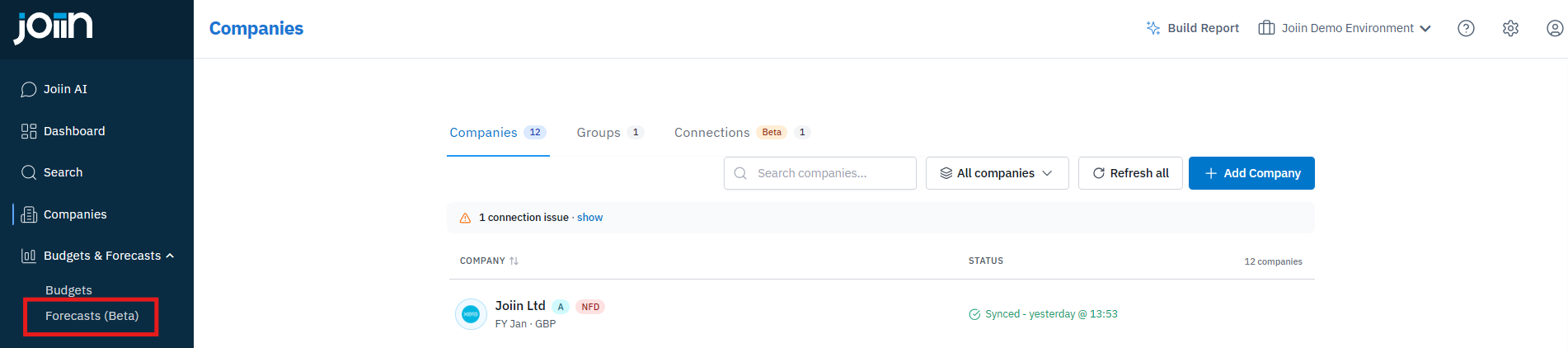
1. Select the Forecast option from the Budgets & Forecasts section of the left side toolbar
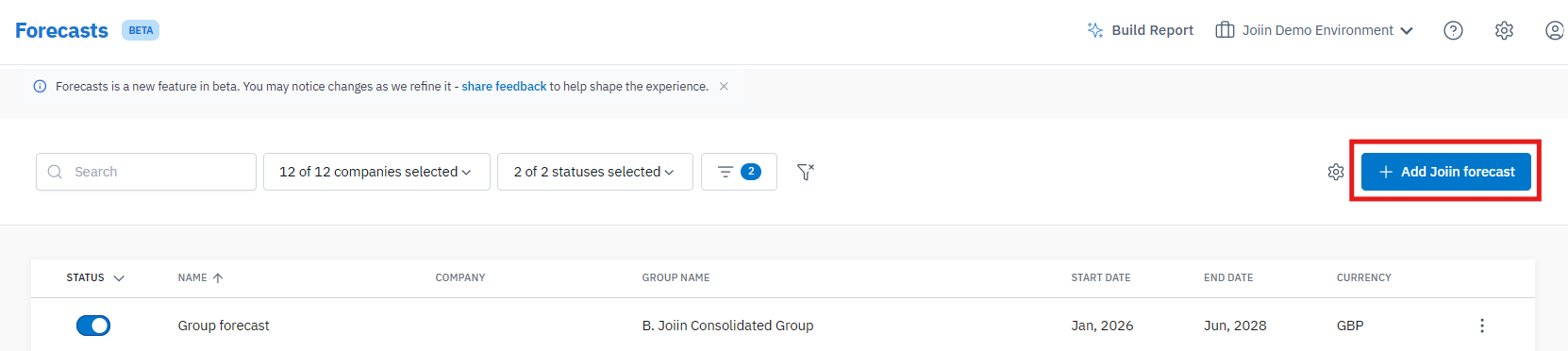
2. Choose the Add Joiin Forecast button
3. Set a name for the forecast as well as the dates and company or company group it will apply to
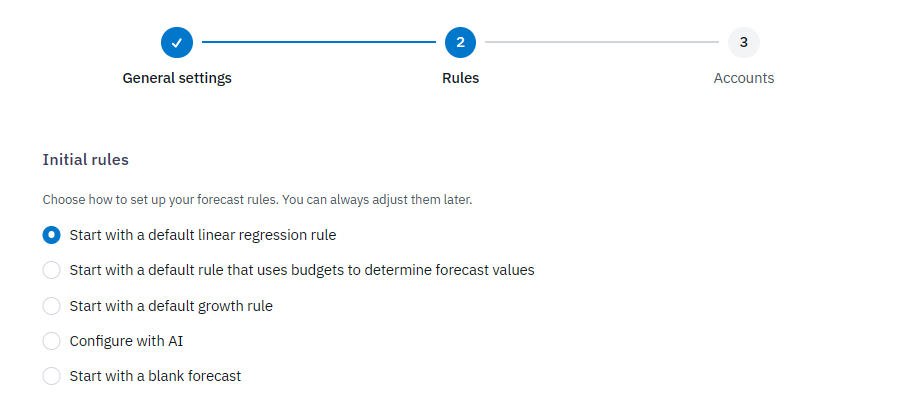
4. Set up your Forecast Rules using either the Default Linear Regression, Start with a default rule that uses budgets, Configure with AI or Default Growth option
For more info on the different Forecast Rules and their uses, please see this guide
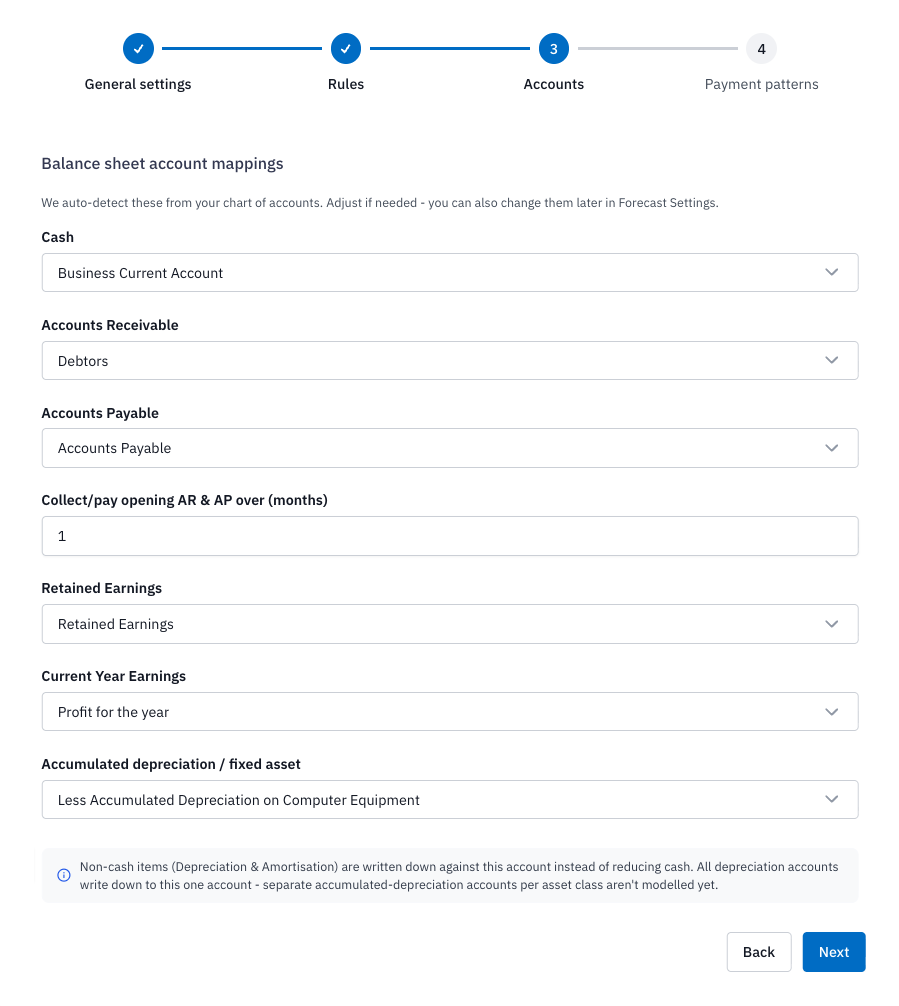
5. Check the account mappings Joiin uses to build your forecast
Joiin picks out your Cash, Accounts Receivable, Accounts Payable, Retained Earnings, Current Year Earnings and Accumulated Depreciation accounts from your chart of accounts, so you only need to change any that aren’t right
You can also set how many months your opening receivables and payables are collected or paid over
All of these can be changed later in Edit Forecast
6. Click Next to go to the Payment Patterns step and set when your forecast revenue and costs turn into cash
Choose the payment terms for all accounts, then click Add payment terms for any accounts, account types or categories that are paid differently, for example, revenue collected over 60 days but wages paid in the same month
This step is optional
If you skip it, amounts are collected and paid in the same month, and you can add or change payment patterns later from Edit Forecast
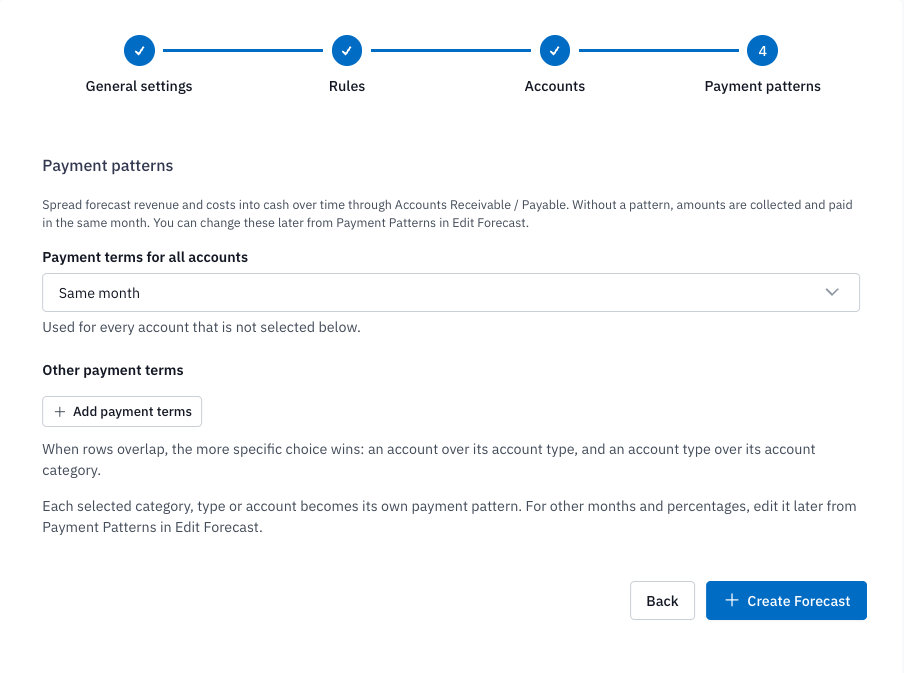
For more info on Payment Patterns and how they affect your Balance Sheet and Cashflow, please see this guide.
NOTE: Payment patterns only take effect if Accounts Receivable and Accounts Payable are mapped in step 5.
7. Click the Create Forecast button in the bottom left corner to produce forecasted figures
For more detailed information on each of these steps, see this User Guide
NOTE: If you have produced Forecasted figures outside of Joiin, these can be added using an Excel file upload to an existing blank forecast