
If you have Multi-Client enabled and need to give a User access across all your clients, you can switch them to a Teammate directly from the Users page. This is useful when someone's role expands and they need to see more than one client or they were incorrectly set up as a client rather than as someone in your practice.
To switch a User to a Teammate:
- Select Users from the Settings menu at the top right
- Find the user you want to switch
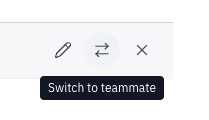
- Click the Switch to teammate icon on the toolbar next to their name
- A confirmation dialogue will explain that the user will move from the Users page to the Team & Clients page
- Click Switch to confirm
Once switched, the user will no longer appear in the Users list. They'll appear in the Teammates list on the Team & Clients page and will have access to all your clients.
Things to note:
- Only users on the Users page (Client Users) can be switched. Teammates are managed on the Team & Clients page.
- The user's email address and identity stay the same. They don't need to accept a new invitation.
- The user may need to log off and back on for the change to take effect.