
IN THIS SECTION
Overview
The Search page allows you to search for Transactions or Journals.
Journals are the individual accounting entries that make up a transaction — the debits and credits that are created in your accounting system when an invoice is raised, a payment is received, or an adjustment is made. Transactions are the source documents themselves — the invoices, bills, and payments. Search Journals to see the underlying accounting detail; Search Transactions to find the source documents.
Searching for Transactions
To access the Transactions Search click on the Search item in the left menu and select the Transactions tab. The first time you access the page all transactions across all companies will be included. The details of each transaction will be shown such as Date, Reference, Contact name and Total.
Searching and Filtering Results
You can enter a variety of search criteria to filter the results and find the transactions you need. The list of available filters is described below. Note that not all filters are displayed automatically, click on the filter button to show a list of available filters and select to display the desired ones.

Each time you search and narrow your results, some filters will change to reflect what is available within the current set of results.
| Filter | Description |
|---|---|
| Companies or Groups | Select the companies or groups you wish to search for transactions in. |
| Search by text | Enter text to find a specific transaction. The text will be searched for across all the fields of a transaction. So this can be used to search for a specific reference number or contact name for example. |
| Date range | Use the date range filter to find transactions within a specific period. Defaults to 24 months. Results are matched against the transaction date (e.g. Invoice Date). |
| Due Date range | Use the due date range filter to find transactions within a specific due date period. Results are matched against the transaction due date (e.g. Invoice Due Date). |
| Type | Select the types of transactions you wish to see, e.g. Invoice, Bill, Payment. |
| Status | Select the statuses of the transactions you wish to see, e.g. Fully Paid, Outstanding, Partially Paid. |
| Currency | Select the currencies of the transactions you wish to see. |
| Contact | Select the contacts you wish to see transactions for. You can search for contacts, deselect all and select all. |
Show Credits as Negative
You can choose to show Credit Transaction Types as a negative value - this is the default behaviour and is a more intuitive presentation, meaning credits offset debits and totals balance out. You can switch this toggle off to display values as positive for all transaction types.
- Click on the cog icon at the top right

- Switch the Show credits as negative toggle as desired
Transaction Totals
If you have selected any of the Totals columns, you can see a sum of all the transactions at the bottom of the totals columns. If the results contains transactions in more than one currency, there will be a total for each currency. You can scroll up and down to see each total if there are more than a few.
Searching for Journals
To access the Journals Search click on the Search item in the left menu and select the Journals tab. The first time you access the page all journals across all companies will be included. The details of each journal will be shown such as Date, Reference, Account name and Net Amount.
Searching and Filtering Results
You can enter a variety of search criteria to filter the results and find the journals you need. The list of available filters is described below.
Each time you search and narrow your results, some filters will change to reflect what is available within the current set of results.
| Filter | Description |
|---|---|
| Companies or Groups | Select the companies or groups you wish to search for journals in. |
| Accounts | Select the accounts you wish to search for. The available accounts map to the accounts on the Chart of Accounts for each selected entity. |
| Source Type | Select the source types you wish to search for. Source types are the categories of record in your accounting system that can generate journal entries. Different source types represent different kinds of accounting activity: sales and purchase documents (Invoice, Bill), payments (Payment In, Payment Out, Cash Paid) etc. |
| Date range | Use the date range filter to find journal entries within a specific period. Results are matched against the journal date. NOTE: the date range is currently limited to a period of one year. |
Journal Availability
Journal data is only available for companies connected via Xero or QuickBooks — manually created or CSV-imported companies don't have journal records in Joiin. For connected companies, data availability also depends on when the company was first synced. A status indicator is shown against each company — hover over it for more detail.

Common Features
Drilling Down
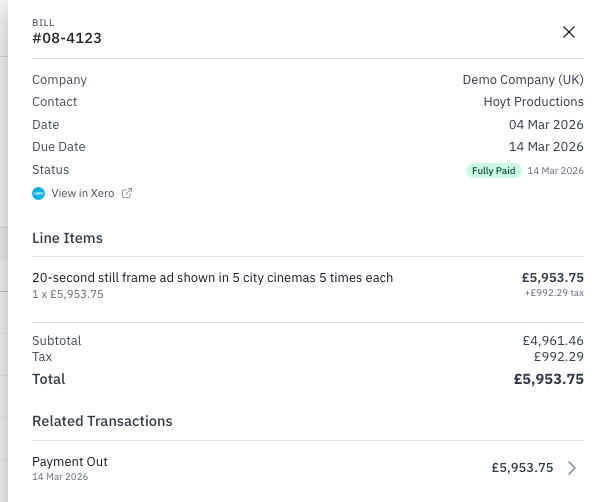
In the results, the Transaction Type/Type column shows a the type of transaction/journal with a clickable link. Click on this to bring up the details of a transaction/journal in the right hand pane. You will see all the details including things like invoice lines and a link to view the transaction directly in the source system. Where applicable, a Related Transactions section will be included where you can see related transactions and click to view their details.
Clearing Filters
Click on the Clear Filters button at the top right to reset all filters, columns and sort order to their default settings.

Paging
The first 100 results will be displayed. If you have more than 100 results you can page through them using the paging tool at the bottom of the screen.

Sorting
You can click on the column heading to sort the results by that criteria. The initial click will sort ascending and an up arrow will be displayed in the column heading, e.g.

Click again to sort descending - the direction of the arrow will change:

Selecting and Changing Column Order
You can choose which columns to display and change the order they appear in when viewing results. To do this
- Click on the cog icon at the top right

- Click on Manage Columns if required
- Check/Uncheck the columns you wish to see/hide
- Click and hold the 6 dots icon at the left of the column name and drag/drop it into the place required.
- Click on Apply changes
Resetting to default
You can reset the columns to the default values. To do this
- Click on the cog icon at the top right

- Click on Manage Columns if required
- Click on Reset
NOTE: Any changes you make to the filter, columns and sort order will be saved in your browser for the next time you visit the page.
Downloading Results
You can download the search results by clicking on the download icon.
