
When comparing actuals against a budget in Joiin, a budget variance and variance % will be added to the report. The budget variances will be displayed as either a green (Positive) or red (Negative) figure.
If an account or group of accounts are showing an incorrect colour for the budget variance, this can be changed.
To do so:
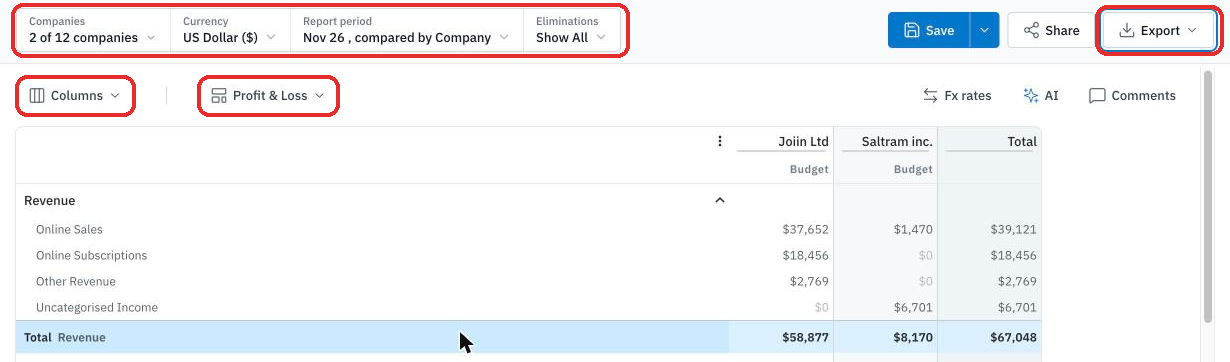
1. Run the report. Set Companies, Currency, Report period and Eliminations in the filters box at the top, clicking Apply changes in each one to run the report. The Layout button below shows the layout in use, the Columns menu holds the display options, and Export holds the download and print options.
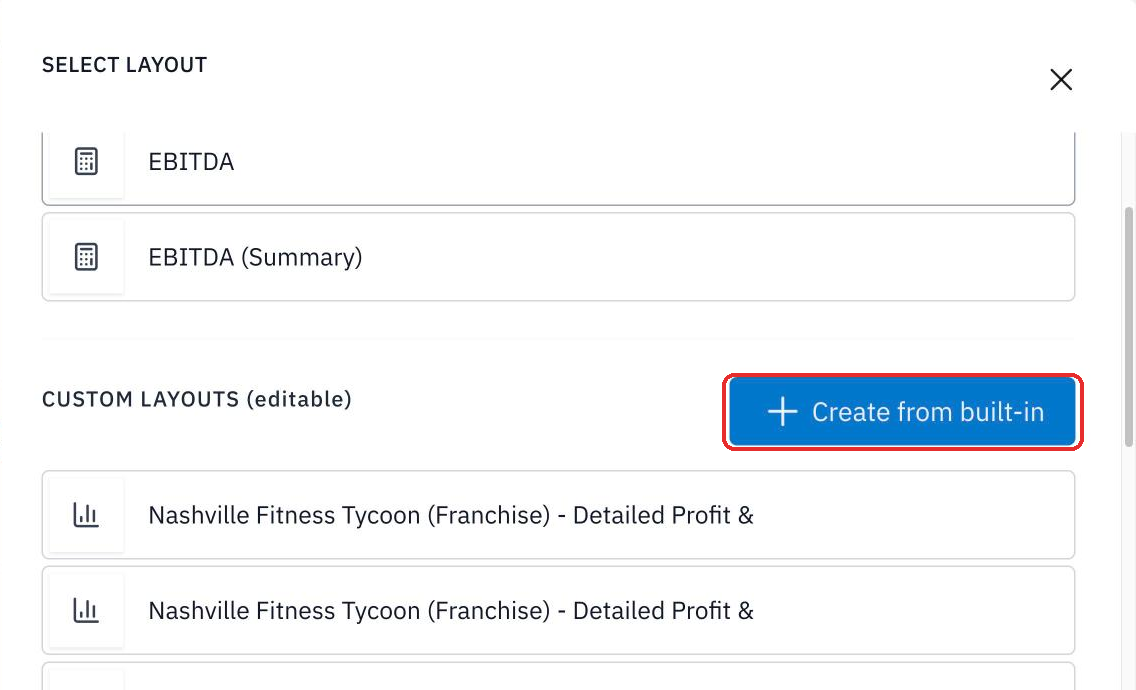
2. Click the Layout button to open the Layout Selector. Built in layouts are read only, so to change budget favourability you need a custom layout. Click Create from built-in to make one, or use an existing custom layout.
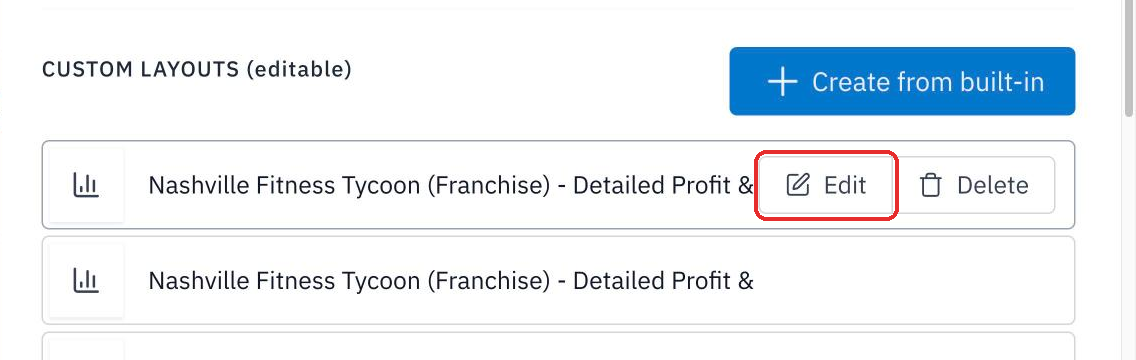
3. Hover over the custom layout you want and click Edit to open the layout editor.
TIP: You can also hover over the Layout button on the report to show its edit pencil. On a custom layout, the pencil opens that layout for editing, and on a built-in layout, it lets you create a custom layout from it.
4. Click on the name of the group of accounts that show an incorrect variance. The Edit Group window opens.
5. Select the Budget favourability box.
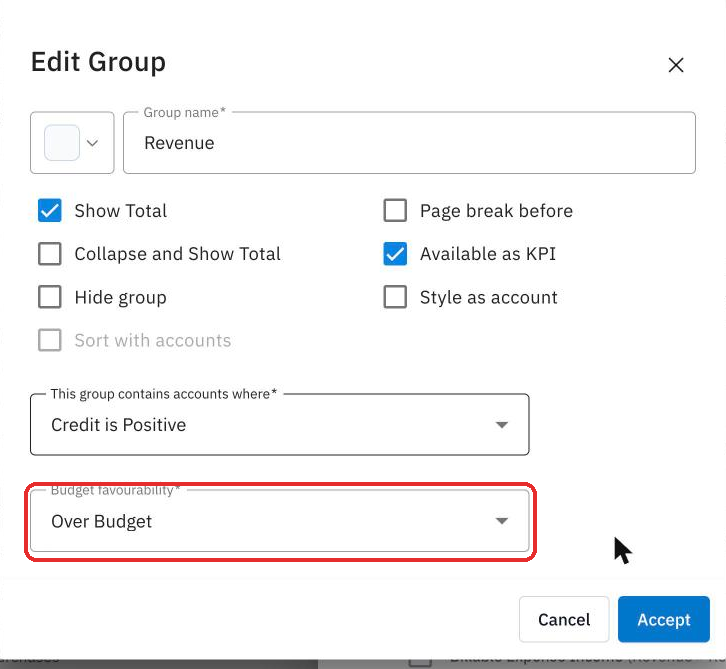
6. Choose one of the options provided.
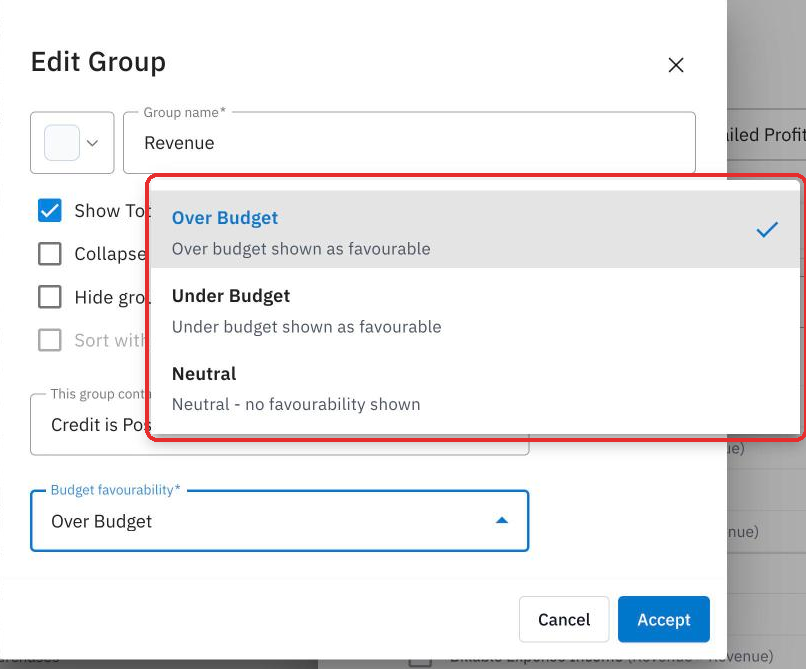
The options provided within the Budget favourability box will consist of:
Over Budget: if the actual for an account is higher than the budgeted value, Joiin will show a green (Positive) variance
Under Budget: if the actual for an account is lower than the budgeted value, Joiin will show a green (Positive) variance
Neutral: Joiin will show the variance in black, regardless of value
7. After selecting an option, click Accept to save the changes to this group.
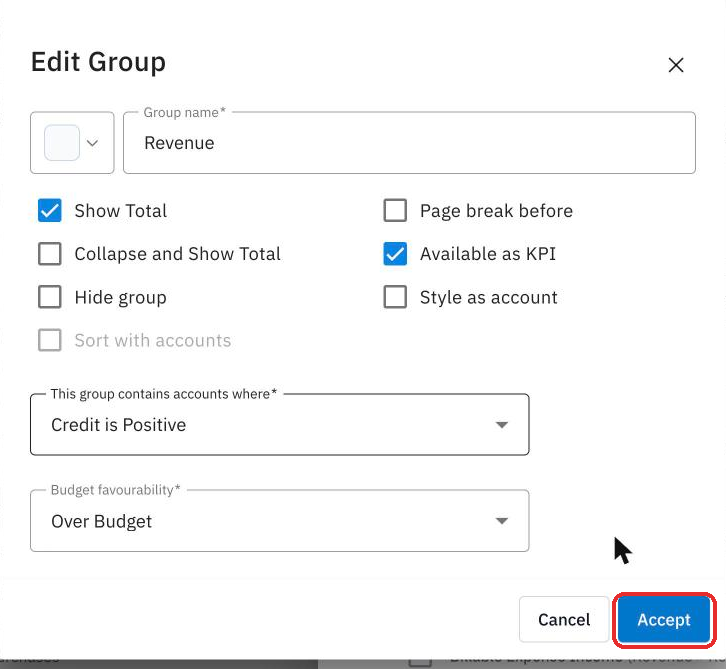
8. Click Save to save the layout. The report runs again using the updated layout, so you can check the variance now appears as expected.