
In Joiin, users have the ability to group companies together. You can get a breakdown in your reports by Group, as well as a Consolidated total by using Joiin's Compare By Group feature.
This will be useful for grouping companies from the same country, similar geographical locations, or similar industries for complex multi-entity groups.
To create a group:
1. Click Companies on the left side toolbar
2. Select Group.
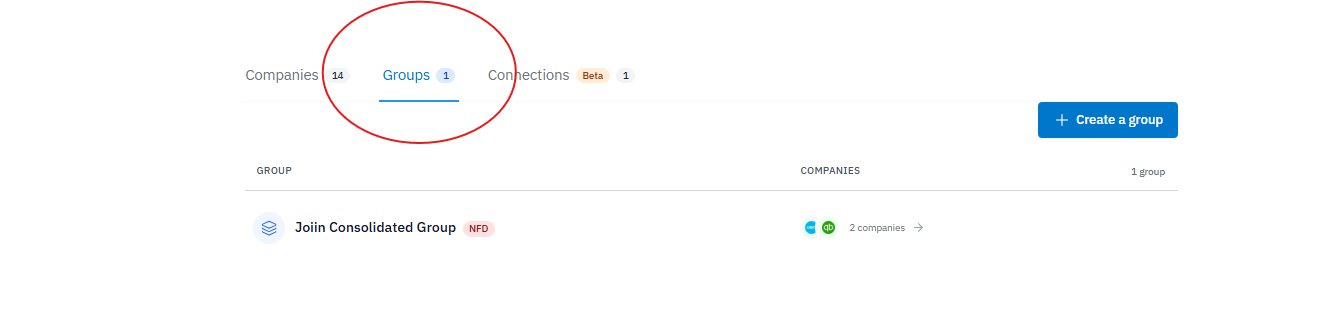
3. Click Add Group Structure
4. Name the group and select any companies from the list provided
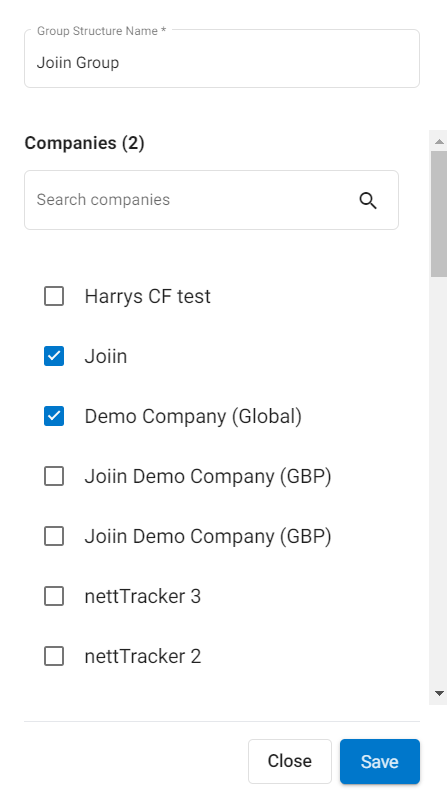
5. Click Save to save your work
Setting ownership percentage within a group:
- Open the Groups tab on the Companies page.
- Hover over the group and click the three dot menu next to the group and select Edit.
- Enter the percentage against each company.
- Click Save.
NOTE: ownership share is available on Pro and Max. On Core the percentage fields in the group edit dialog are disabled and cannot be set below 100%. Percentages you have already saved continue to apply in your reports.
To compare a report by group:
1. Select the groups of companies that you want to be included in the report using the companies box
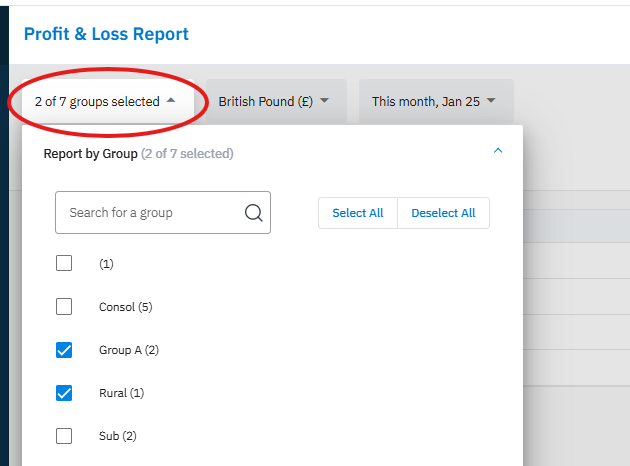
2. Select the currency and reporting periods as required
3. Select the Compare by Group option - as shown below
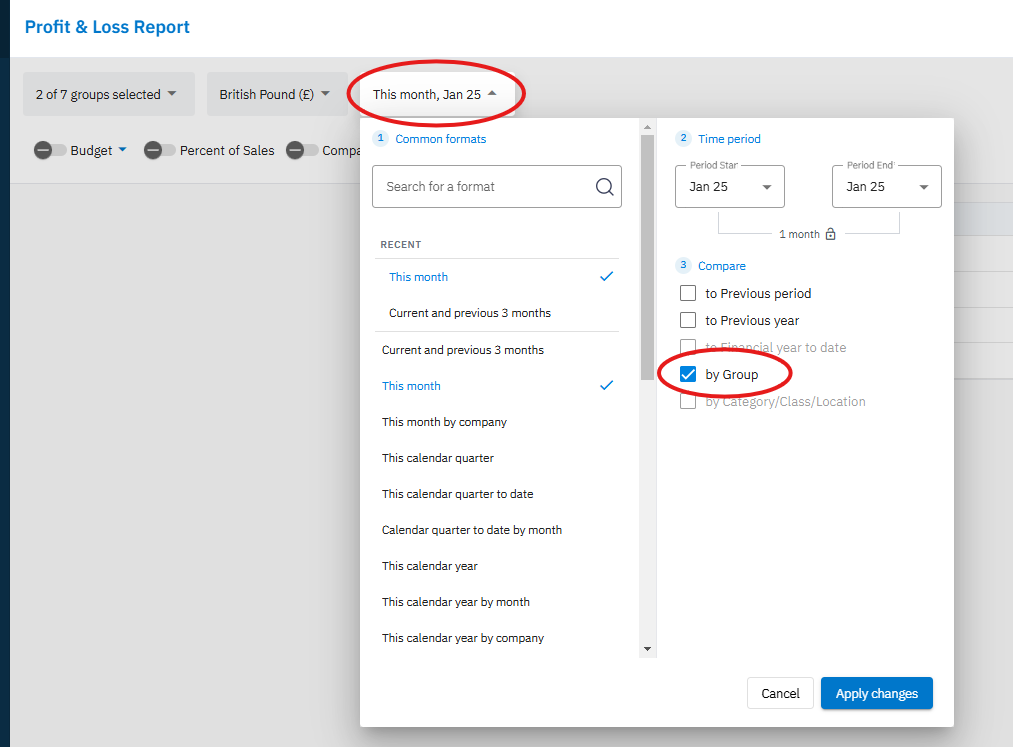
4. Click Apply Changes to run your report and press the Total toggle, to see a consolidated column.
This will then provide you with your group-specific reports in column format, with their respective names as headings, with a consolidated total in the final column.